

AI Photo Enhancer – Restore and upgrade old photos with AI
1. What is it for?
AI Photo Enhancer restores and improves old, blurry, or damaged photos using AI—ideal for digitizing and reviving family archives, including B/W and film shots.
For:
- Individuals restoring family, wedding, and memory photos
- Marketers/designers upgrading legacy assets
- Archivists/photographers rebuilding historical collections
2. Key features
Group 1: Restoration
- Sharpness recovery: clarify blurred details and facial features
- Colorize B/W: turn black‑and‑white into vivid color using learned historical palettes
- Denoise + detail: remove grain, enhance resolution, and smooth textures
Group 2: Quality upgrade
- Upscale 2x/4x/8x without artifacts—ready for print and display
- Face enhancement for portraits and groups
- Lighting and color optimization to balance exposure
Group 3: From photo to video
- Animate portraits: simulate blinking, smiling, head turns
- Multiple AI models for different animation styles
Group 4: Management and reuse
- Edit history saved for downloads
- Re‑run processes with different settings
3. How to use
Step 1: Upload photo (JPG/PNG/BMP)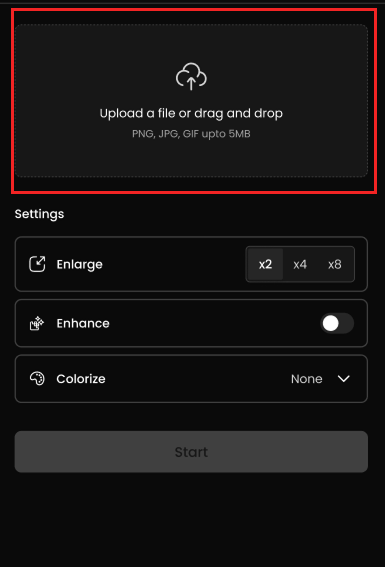 Step 2: Choose options (upscale 2x/4x/8x; restore sharpness; colorize; etc.)
 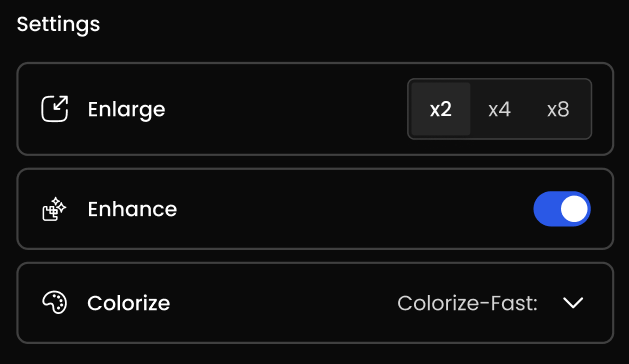 Step 3: Compare before/after; download or continue editing
 Step 4: (Optional) Create a short animation from the restored photo
4. Real‑world applications
Personal archives: Restore and colorize parents’ wedding photos in minutes.
Corporate history: Enlarge and clarify legacy images for anniversary videos and exhibits.
Freelance service: Offer restoration, colorization, and upscaling without heavy software.
5. Before‑and‑after
Before: 1–2 hours per image in Photoshop; expert skills; upscaling causes artifacts.
After: 2–5 minutes; no design skills; sharp, colorized, and upscaled outputs; optional animations.
Result: Less time, more quality, easy reuse.
6. Tips
- Choose portrait‑focused models for faces; defaults for landscapes
- Combine features (Upscale + Sharpen + Colorize) for best B/W results
- Use highest‑resolution scans available
- Save history for personal/team libraries
7. Start today
No specialized software or skills needed. With a few clicks, you can:
- Turn old photos crisp and lively
- Preserve memories beautifully
- Share or print in high quality
Try: https://tooliz.pro